Native React UI and notebook export
AGILAB’s source interface uses React and the agi_web Python view host.
The main interface, shared coordinate map and analysis curves render through
the native React host. Pipeline editing, specialised geographic views and
administration remain Python views, rendered by the same native host.
Important
These instructions describe the migrated source checkout. A previously published PyPI wheel or hosted demonstration may still expose the interface of its recorded release. Local validation does not publish a new wheel or update a hosted Space; consult Release Proof for published evidence.
Workspace layout and accessibility
On a narrow screen, PROJECT places its actions before the compact health cards. ORCHESTRATE places execution controls before the collapsed environment, deployment and argument sections. A disabled execution keeps its blocking reason visible beside the controls. WORKFLOW keeps run controls before graph inspection; status details, graph preview and the new-stage editor start collapsed.
SETTINGS places Save .env above categorized sections. Collapsing a section preserves its values and edits. Existing saved secrets remain blank and are retained when left blank; naming a new secret masks its value before submission. Python variable conventions and runtime diagnostics remain available in collapsed sections.
Open Tools from the workspace header. Press Escape to close it and return focus to its disclosure. Option groups expose each option’s own name, and long project titles and analysis filenames wrap on mobile.
Operator profiles, panes and commands
Note
At the 2026-10-11 checkpoint, this workbench is a qualified source MVP. It is
not included in the published agilab 2026.10.11 package or the hosted
demonstration recorded at that checkpoint. Browser
evidence covers desktop/mobile navigation, the palette, review/cancellation,
project switching and separate project layout preferences. Install/run queues
have backend test evidence; scientific execution and installation were not
performed through this palette in the browser proof. Consult
Release Proof for subsequent publication checkpoints.
Select a project, then choose a Profile in the operator workbench. Use Open beside the profile description to enter the existing workspace. Profiles organize navigation and its context pane; review the execution settings in ORCHESTRATE before launching a local or cluster run.
Profile |
Workspace |
Use |
|---|---|---|
Local app |
ORCHESTRATE |
Configure and run the selected app locally. |
Cluster app |
ORCHESTRATE |
Review resources, deployment and distributed execution settings. |
Notebook |
WORKFLOW |
Edit the pipeline and export editable Python cells to Jupyter. |
Run evidence |
ANALYSIS |
Select a view to inspect outputs, provenance and comparisons. |
Worker environment |
ORCHESTRATE |
Inspect and deploy the worker environment through the AGI SDK. |
Public demo |
AGENT DEMO |
Open the demonstration and its proof controls. |
Release proof |
ANALYSIS |
Select Release Decision to review promotion evidence. |
Use Show pane, then Pane, to display Project context, Compact diagnostics, Available commands or Execution evidence beside the profile description. Hide pane returns to the compact layout. The browser remembers the profile, pane and layout separately for each project. These panels show compact host snapshots; pipeline execution stays in the existing Python workspace and AGI SDK lifecycle.
Open Commands or press Cmd+K on macOS, Ctrl+K elsewhere. Type part of the command name, use the arrow keys to select a result, and press Enter. Escape closes the palette and returns focus. Navigation commands open their workspace directly. Disabled commands show why they are unavailable.
Install selected app, Run configured project and project-switch commands first show Review command with the action and target project. Choose Execute to submit that action, or close the palette to cancel. Installation can download dependencies. Installation and execution use ORCHESTRATE’s existing pending-action queue, readiness checks and AGI SDK; discovery and opening a profile do not queue a run.
Last execution is a compact indicator from this browser session: it reports the failure flag or Not recorded in this session. Use ORCHESTRATE for full resource checks and run logs, and ANALYSIS for recorded project evidence. Treat the pane as context for those workspaces rather than a complete run history.
Install and launch
The native release 2026.10.07 is published on PyPI as 2026.10.7.
See Release Proof for publication evidence. Install the UI, notebooks
and promoted built-ins in a new environment with:
python -m pip install 'agilab[ui,notebook,examples]==2026.10.7'
agilab --no-browser
Run the installed CLI outside the source checkout. The Minimal App is included
in agi-apps. The R Runtime Bridge and legacy UAV Queue are supplied as
source in the archive of the signed v2026.10.07 tag; see
Public app catalog. An app’s Python, scientific and external runtime
prerequisites still apply. Private app packages use their private distribution
channel and are not included in public wheels.
From the AGILAB repository root, install the UI and notebook profiles:
uv sync --extra ui --extra notebook
uv run --no-sync python -m agilab --no-browser
The ui profile includes the native host. The notebook profile adds the
Jupyter widget integration. App-specific scientific dependencies, models and
datasets remain the responsibility of the selected app. Worker-only and CLI
installations can continue using the headless packages without UI extras.
To open an app-owned local surface, use:
uv run --no-sync agilab app surface pytorch_playground_project --ui react
The selected app must be installed in an environment containing its runtime
dependencies. An older backend = "streamlit" declaration is normalised to
the native React backend; it does not launch the former provider.
Keep a specialised view in Python
Save this example as agilab_native_counter_view.py:
from agi_web import python_ui as ui

ui.title("Native Python counter")
ui.session_state.setdefault("count", 0)

def increment():
    ui.session_state["count"] += 1

ui.text_input("Name", key="name")
ui.button("Increment", on_click=increment)
ui.write({"name": ui.session_state["name"], "count": ui.session_state["count"]})
From the source checkout, launch the view with the installed profiles:
uv run --no-sync python -m agi_web.react_python_host agilab_native_counter_view.py --address 127.0.0.1 --port 8501 --no-browser
Controls update the Python session and execute callbacks there. State persists across rerenders within that session. Forms submit their values together; button events are consumed once. The browser receives rendered nodes and assets rather than executing the app’s Python code. The app remains responsible for its computation, evidence files and external-service access.
For an app-aware page, append its arguments after --:
uv run --no-sync python -m agi_web.react_python_host VIEW.py --no-browser -- --active-app /path/to/app_project
Use loopback for local work. Any non-loopback binding requires
AGILAB_PUBLIC_BIND_OK=1 and an authentication or TLS indicator
(AGILAB_AUTH_REQUIRED, AGILAB_PUBLIC_AUTH or AGILAB_TLS_TERMINATED).
Those indicators declare the surrounding deployment controls; they do not
implement authentication. See Environment Variables and
Trusted shared deployment before shared deployment.
Render the same view inside Jupyter
In a notebook kernel with the notebook profile installed:
from agi_web.notebook_python_view import render_python_view

render_python_view("agilab_native_counter_view.py")
For an app-aware view, pass active_app="/path/to/app_project". The Python
file and app directory must be available to that kernel. The returned AnyWidget
renders the controls inside the notebook, including callbacks, state and file
downloads. Its styles are isolated in a Shadow DOM. The widget transport runs
through the notebook kernel and renders the view with the native notebook adapter.
The interface embeds local React, Graphviz, Vega and mathematics assets. This avoids a rendering dependency on a CDN. It does not make a scientific app’s models, data downloads or external services available offline automatically.
Export the host for a portable Python app
from agi_web.portable_python_host import export_python_host

export_python_host("agilab_native_counter_export/agi_web")
The export copies the native host, compiled assets and licence notices into
agilab_native_counter_export/agi_web. Copy agilab_native_counter_view.py
and its reviewed app files into the parent agilab_native_counter_export/
directory. Run the following command from that parent directory:
python -m agi_web.react_python_host agilab_native_counter_view.py --address 127.0.0.1 --no-browser
Run the portable command with a Python interpreter available in its deployment environment. The exported host uses the standard library. The view’s own Python packages, models, datasets and configuration must still be supplied. A static component HTML export is useful for sharing an already computed visualisation; a Python view or notebook widget is required when interactions must execute Python callbacks. See agi-web native runtime for the component and renderer APIs.
Workflow stage ownership and branch replay
Open Versioned stage templates in WORKFLOW to create a structured stage, review its parameters or resolve version and renderer drift. App, input/output paths, execution mode, action and reset values use labelled fields when their registered literal types are supported. Open Advanced parameters and select Edit complete parameters as JSON for the complete document. Unknown, nested, missing and null values remain available without being silently changed. Apply reviewed edits with Apply template parameters. Refresh from template is explicit; Keep as custom Python retains the exact code. Editing Python in the stage editor, HISTORY or an imported notebook relinquishes template ownership. Both notebook export modes reject stale templates. See Versioned pipeline stage templates for the persisted contract and reviewed legacy conversion with a source backup.
The multi-app runner exposes Retry or rerun a branch. Select a failed step and Prepare retry, or a completed step and Prepare partial rerun. Preparation invalidates that step, its descendants and their artifact handoffs. Other completed results, history and artifact files remain available.
Use Run next stage or Run ready stages to execute the prepared branch through the existing persistent DAG runner. Reloading WORKFLOW recovers the saved revision and pending branch. An uncertain external callback requires recovery with its exact owner and idempotency token before retry. A changed DAG source, or an older state without its source fingerprint, requires an explicit Reset preview state before replay.
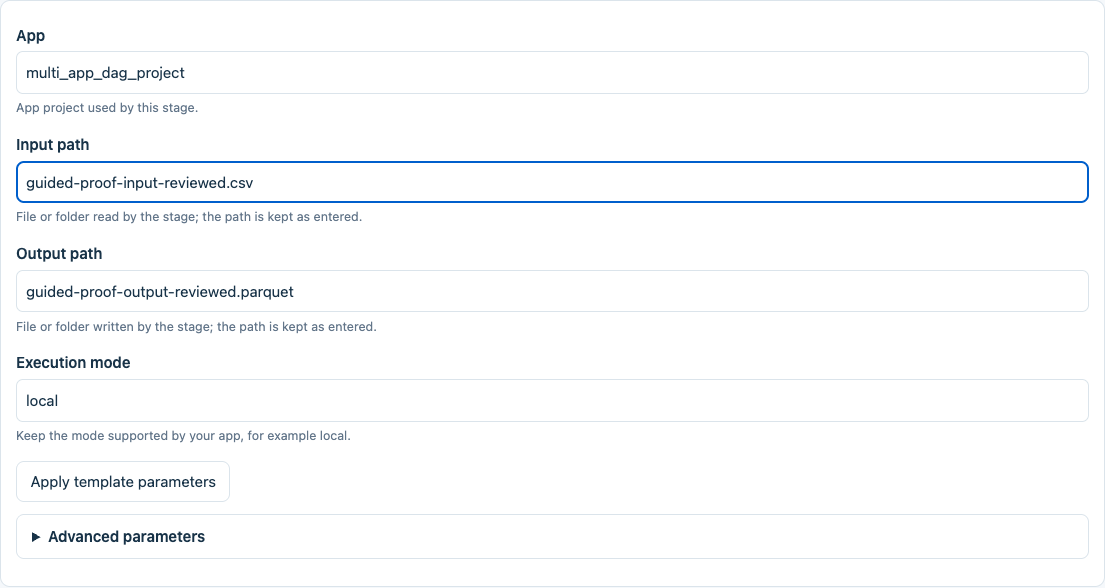
Real WORKFLOW controls in an isolated source-checkout proof. Template parameters were saved, edited and recovered after reload.
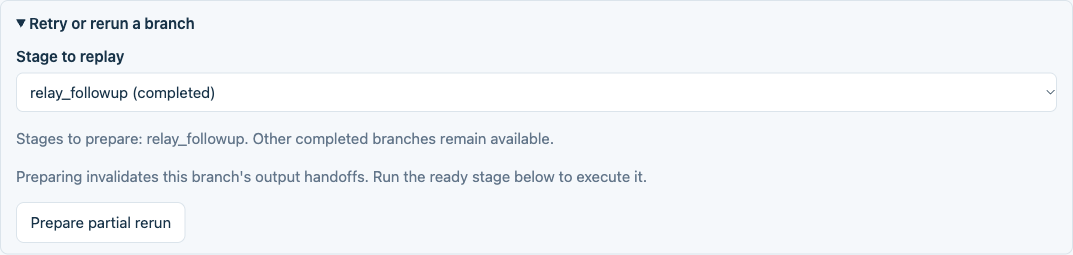
The branch replay controls use the persistent runner. This capture uses synthetic app callbacks to verify UI and persistence; it does not demonstrate business computation or a cloud run.
Recover and re-export an imported notebook
Open Notebook in WORKFLOW and upload an .ipynb file. The preview,
runtime-role choices, proposed writes and import confirmation stay in this
section, so they remain available while Tools is closed. Review the roles
and import scope, then confirm to update the active pipeline. Cancel import
discards the preview and clears the file selection; you can select the same
file again without losing pending editor drafts.
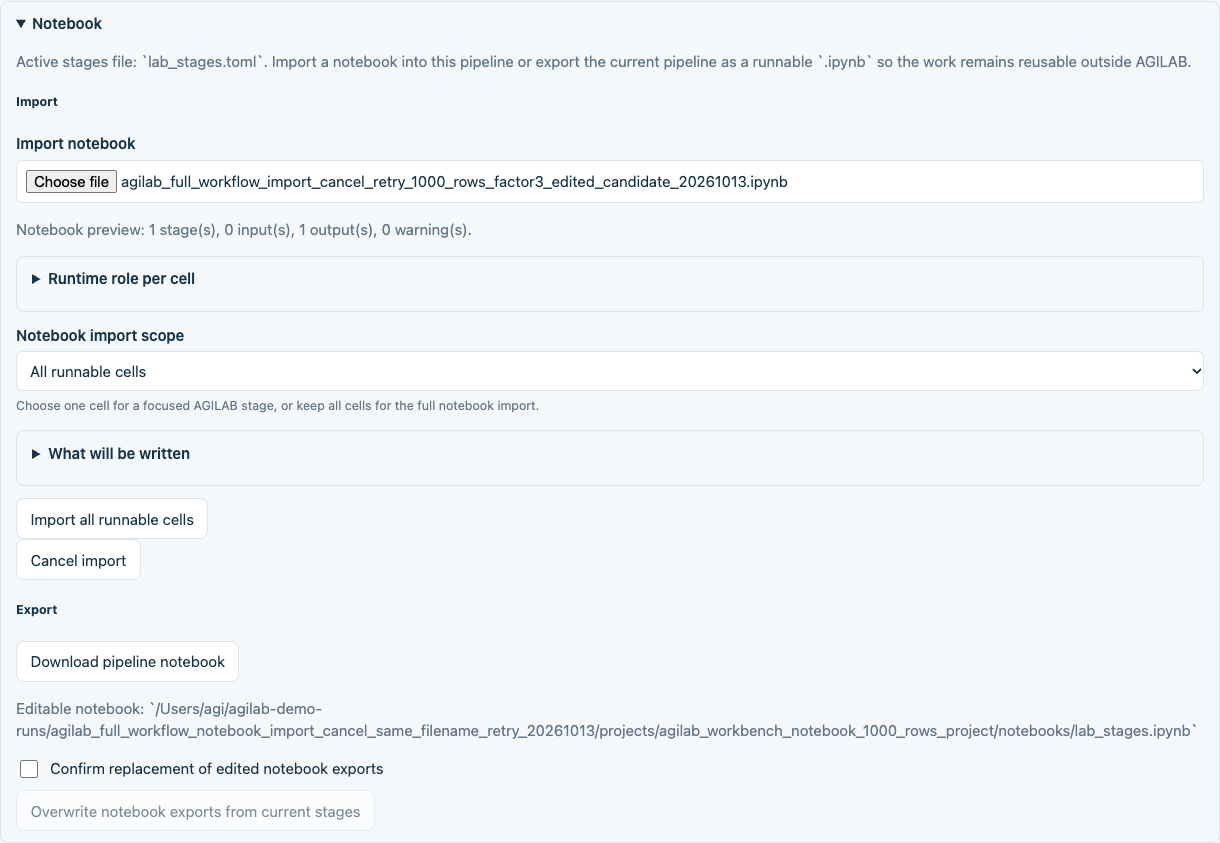
Notebook import controls are grouped with the upload and export actions.
WORKFLOW preserves the complete source notebook in its hash-verified import contract, including cell IDs and order, markdown and raw cells, empty cells, attachments, outputs, custom metadata and kernel metadata. Download the original source or the source with reviewed code edits from WORKFLOW. Edited cells lose their stale outputs and execution counters; provenance records both hashes.
For the command-line route:
python -m agilab.notebooks.notebook_pipeline_import source-export \
  --contract notebook_import_contract.json \
  --output agilab_authored_notebook_recovered.ipynb
Add --cell-edits agilab_reviewed_notebook_cell_edits.json for reviewed source
cell edits. A composite compiled stage cannot always be split safely into its
original cells; WORKFLOW diagnoses this case and keeps the original recoverable.
Foreign kernels and unsupported shell or magic cells remain diagnosed rather
than silently rewritten. To explicitly convert a supported setup cell, repeat
--convert-setup-cell CELL_ID. Simple plain-index %pip or !pip install
requirements become declared dependencies; import does not install them.
%matplotlib inline becomes an acknowledged non-interactive backend.
Successive conversions retain prior dependency declarations and source
provenance. Other shell commands and foreign-language magics require review in
the source notebook.
See Advanced Notebook Routes for the import and recovery boundary.
Native interface examples
Home and WORKFLOW captures show the current source interface in an isolated local workspace. PROJECT and ANALYSIS captures use installed UI and notebook wheels with the built-in flight telemetry project. These local captures do not claim that a public release or hosted Space has been updated.
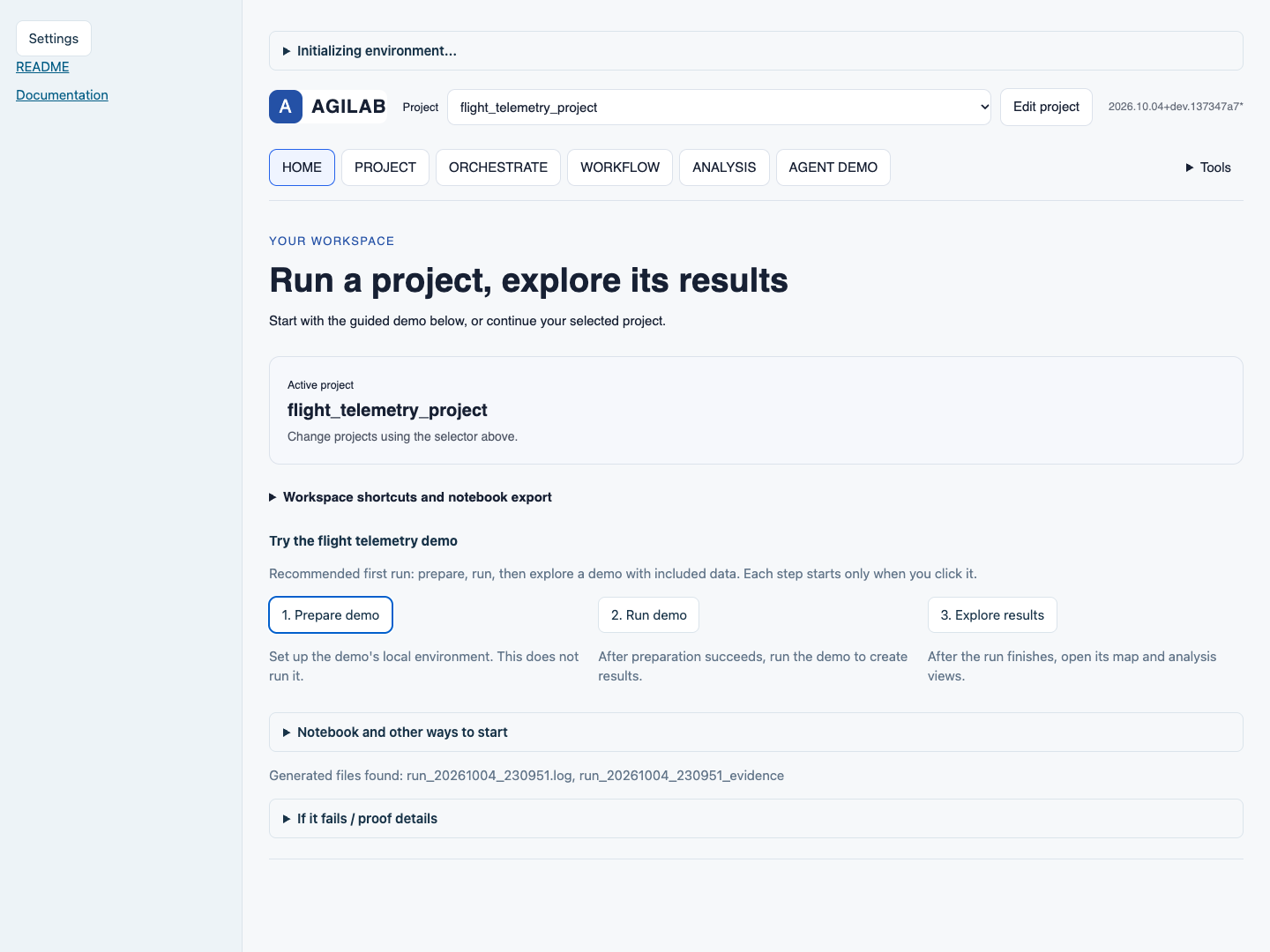
Home offers one explicit Prepare demo -> Run demo -> Explore results journey. Continue this project retains a selected custom project. Notebook entry paths and other starts remain in collapsed sections.
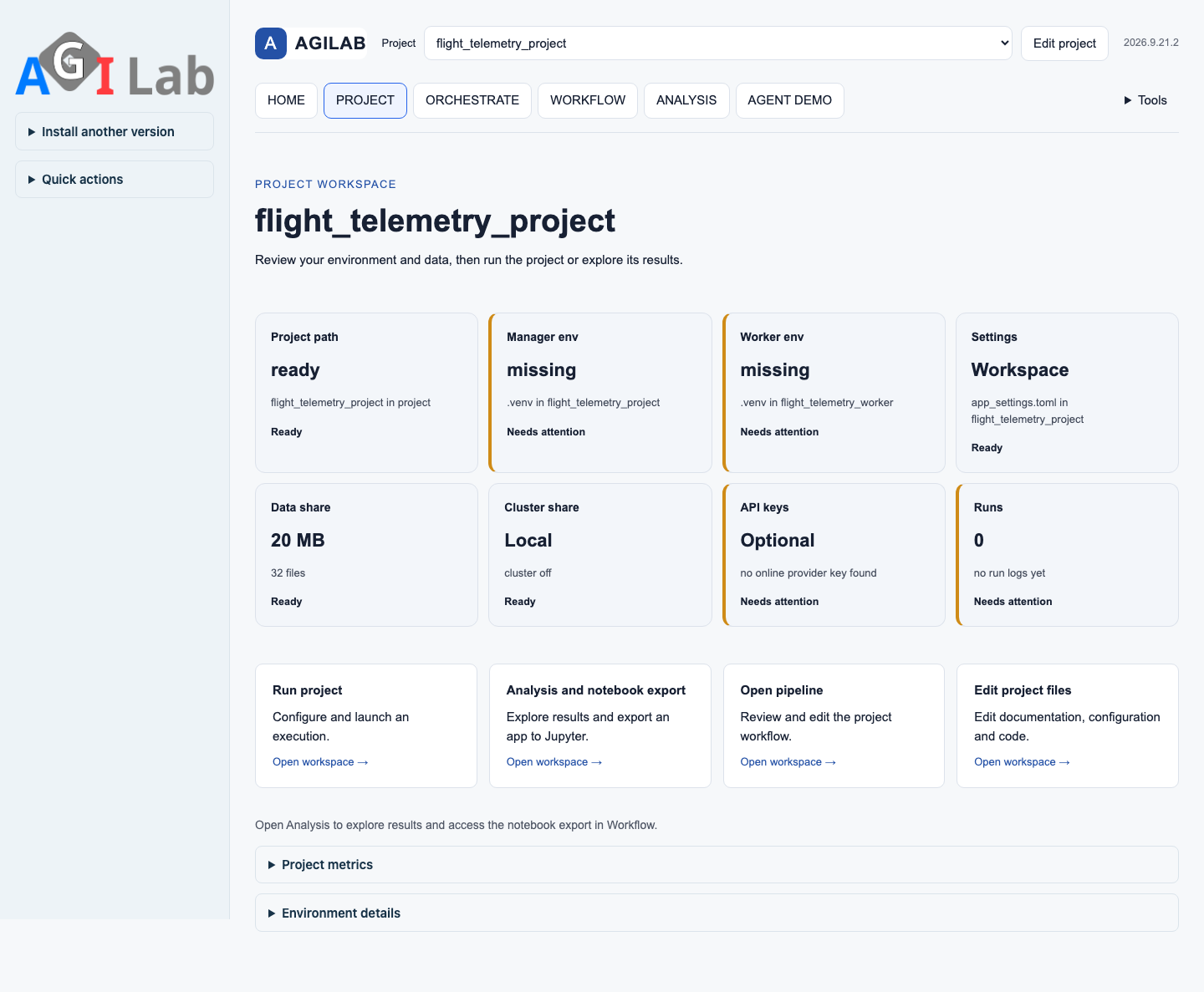
The retained Python PROJECT view is rendered by the React host.
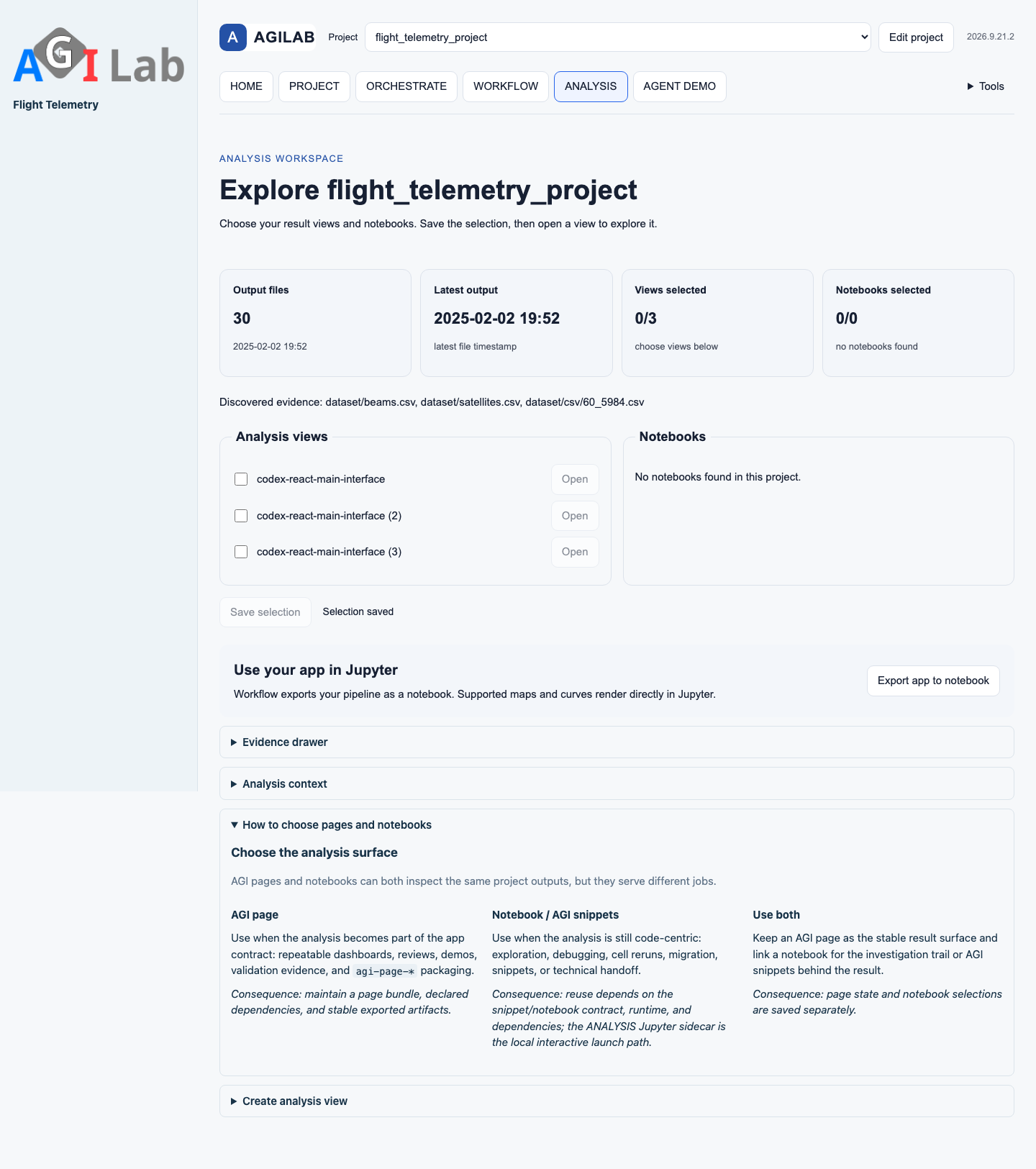
ANALYSIS discovers the installed specialised views.
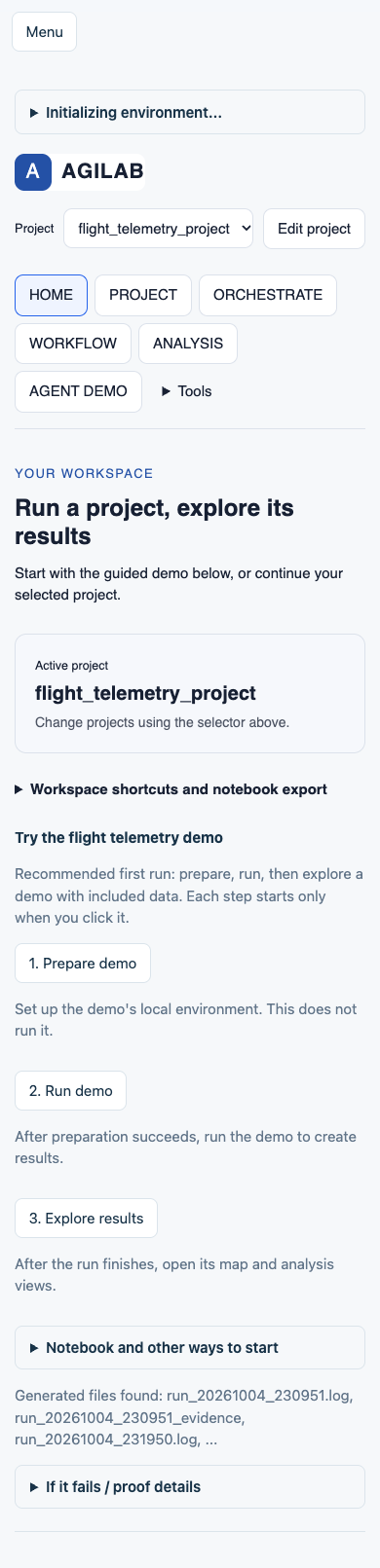
The same interface adapts to a mobile viewport. Mobile captures of PROJECT and ANALYSIS are also available.

