AGILAB Video Tutorial Guide
Use this guide when you want to produce a short AGILAB tutorial package instead of an isolated video file.
The package has three complementary assets:
a short live tutorial video or GIF
a self-generated explainer MP4/GIF/poster
a static SVG/social kit for README, docs, and launch posts
Recommended tutorial package
Keep one app per video, but support two stable narrative packs:
flight_telemetry_projectsafest default
best for newcomer onboarding and first local proof
UAV Relay Queue(uav_relay_queue_project)strongest public
WORKFLOW+ANALYSISstorybest for the main full-tour demo assets
Default recommendation:
use
flight_telemetry_projectfor newcomer onboarding clips and first-proof demosuse
UAV Relay Queue(uav_relay_queue_project) for the main full-tour product demo when you want a truthfulPROJECT -> ORCHESTRATE -> WORKFLOW -> ANALYSISstory
Stable visual assets already tracked in the repo:
docs/source/diagrams/agilab_readme_tour.svgdocs/source/diagrams/agilab_social_card.svg
Generated demo media is intentionally local. Rebuild it when needed instead of
linking documentation to repo-local artifacts/demo_media/... files.
Keep two stable public messages instead of forcing one app to carry both roles:
flight_telemetry_project:PROJECT -> ORCHESTRATE -> ANALYSIS, with visible output files in betweenUAV Relay Queue:PROJECT -> ORCHESTRATE -> WORKFLOW -> ANALYSIS, ending on queue evidence
Which format to use
Use a live tutorial when you want to show the real UI flow:
selecting the app
launching orchestration
checking the produced files
ending on analysis results
Use the self-generated explainer when you want a lightweight shareable asset:
launch posts
README/social embeds
quick product intros
Use the static SVG/social kit when you need a lightweight companion asset around the video:
one README figure
one social/static card
one poster frame
Fastest live workflow
Concrete capture command for the default flight_telemetry_project tutorial:
tools/capture_demo_workflow.sh --name agilab-flight --duration 45 --trim 30
If you launch the recording from Codex, PyCharm, or another non-interactive runner, use the Terminal handoff so the interactive macOS recorder runs in a real operator shell:
tools/capture_demo_workflow.sh --name agilab-flight --duration 45 --trim 30 --via-terminal
Concrete capture command for the uav_relay_queue_project variant:
tools/capture_demo_workflow.sh --name agilab-uav-queue --duration 60 --trim 45
This wrapper:
launches an interactive macOS screen recording with
screencapturestores the raw
.movunderartifacts/demo_media/<name>/raw/exports a shareable
.mp4and.gifunderartifacts/demo_media/<name>/edited/
If you already have a raw recording and only want the export step:
uv --preview-features extra-build-dependencies run --with imageio-ffmpeg \
  python tools/export_demo_media.py \
  --input artifacts/demo_media/agilab-flight/raw/example.mov \
  --mp4 artifacts/demo_media/agilab-flight/edited/agilab-flight.mp4 \
  --gif artifacts/demo_media/agilab-flight/edited/agilab-flight.gif \
  --duration 30
Mission Decision autonomous decision demo
mission_decision_project is the first-class public demo for the Mission Decision
story. Use it when the audience needs to see a complete AGILAB loop: mission
data enters the system, AGILAB builds the runnable pipeline, worker execution
produces evidence, a mission event changes the constraints, and the analysis
view shows the final decision.
Treat it as a technical hero demo, not a short teaser. Keep the public recording
in the 70-75s final range and end on measurable evidence.
Primary run path:
PROJECT-> selectsrc/agilab/apps/builtin/mission_decision_project.ORCHESTRATE->Deploy scheduler & workers, thenRUN.ANALYSIS-> open the defaultview_data_io_decisionpage.
Successful run indicators:
the seeded scenario is
mission_decision_demo.jsonthe initial strategy is
direct_satcomthe adapted strategy is
relay_meshthe analysis view shows latency, cost, and reliability deltas versus the no-replan outcome
the artifact bundle is written under
export/mission_decision/data_io_decision
Tracked companion card:
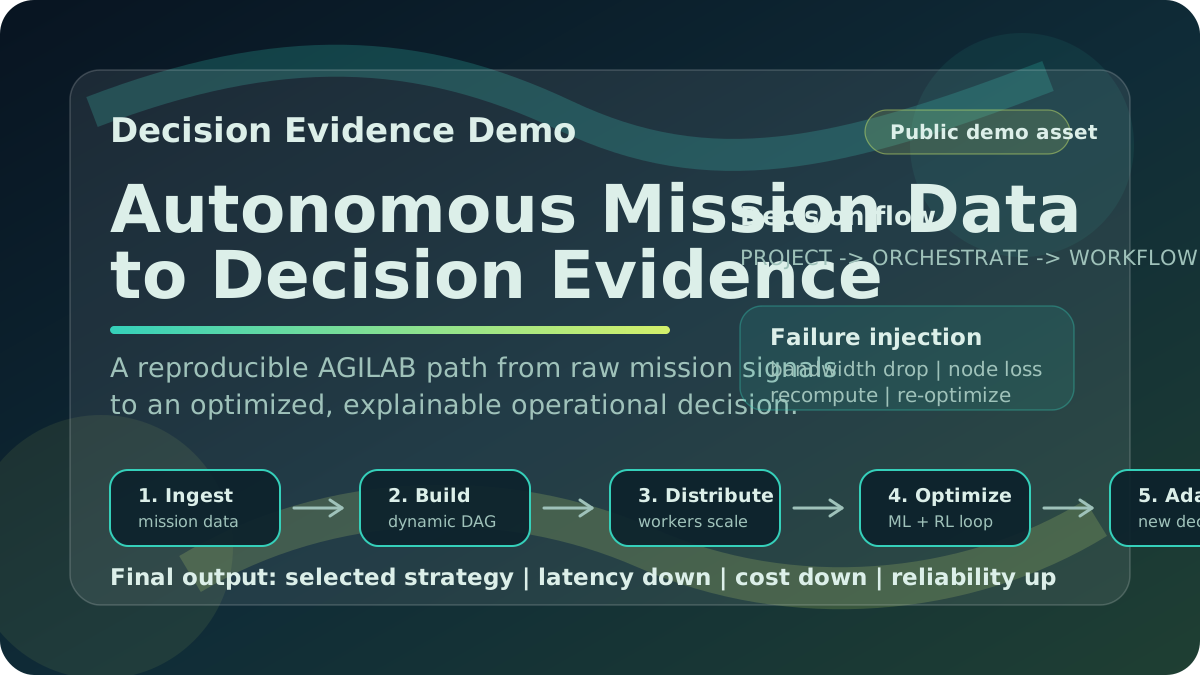
Use docs/source/diagrams/agilab_mission_decision_card.svg as the lightweight
shareable poster or thumbnail. The MP4/GIF remain generated local artifacts
under artifacts/demo_media/ and are intentionally not tracked.
Scenario and pipeline:
inputs: sensor-style streams, network / satcom status, and operational constraints such as latency, bandwidth, reliability, cost, and risk
objective: select the best mission route under changed constraints
generated pipeline: ingestion, cleaning, feature extraction, route scoring, event detection, re-planning, and decision evidence export
output: selected strategy plus latency, cost, and reliability deltas
Demo steps:
Live data ingestion: show the seeded mission scenario and input streams.
Pipeline generation: show the app pipeline view and generated pipeline artifact.
Distributed execution: show worker execution or the clearest local-worker equivalent.
Optimization loop: show candidate route scoring.
Adaptation: inject the bandwidth drop and show the re-plan.
Final decision: close on selected strategy and metric deltas.
Preferred operator cut:
opener:
4singestion and generated pipeline:
16sworker execution:
16sroute scoring:
14sfailure injection and re-plan:
14sdecision metrics:
10s
Keep the act discipline strict:
show at most two settings before moving on
use one fast
ORCHESTRATEproof frameflash
WORKFLOWonly long enough to prove replayabilitymake worker execution the key technical moment
show adaptation as a before/after decision change
close on latency, cost, and reliability deltas
Recommended narration:
opening: “AGILAB turns mission data into an executable decision.”
mid-demo: “The pipeline is replayable, and the decision is backed by artifacts.”
closing: “The result is not just a recommendation; it is an auditable run.”
Optional add-on:
air-gapped mode with no internet access and local models only, when the environment is configured and validated
Optional composite capture:
The legacy three-project capture remains useful when you want a broader montage
across ingestion, prediction, and decision apps instead of the focused
mission_decision_project flow.
tools/capture_three_project_demo.sh --name agilab-mission-decision --duration 82 --trim 74
If the capture is triggered from an automated or agent-driven shell, use:
tools/capture_three_project_demo.sh --name agilab-mission-decision --duration 82 --trim 74 --via-terminal
This wrapper:
writes a cue sheet under
artifacts/demo_media/<name>/points to public project roots for the ingestion, prediction, and decision montage acts
then delegates the actual recording/export to
tools/capture_demo_workflow.sh
Default sequence:
execution_pandas_projectweather_forecast_projectuav_relay_queue_project, or another routing / optimization project passed with--rl-app-root
Important scope note:
the default sequence uses public built-ins from
agilabthe first-class Mission Decision demo is
mission_decision_project; the three-project wrapper is only a composite media workflowkeep dynamic-pipeline claims grounded in visible AGILAB stages, generated snippets, worker activity, and replayable evidence
do not publish competitor-specific claims in the public guide
Use this asset for technical audiences. Do not replace the broad one-app intro video with it for first-time visitors.
Winning criteria:
Criteria |
Strength |
|---|---|
Innovation |
Autonomous pipeline path |
Scalability |
Distributed worker execution |
Real use case |
Mission / network optimization |
AI depth |
ML + optimization / orchestration |
Differentiation |
Not a chatbot |
If interactive screen capture is not possible from your environment, build the coherent synthetic composite instead:
uv --preview-features extra-build-dependencies run --with imageio --with imageio-ffmpeg \
  python tools/build_three_project_demo_reel.py
Outputs:
artifacts/demo_media/agilab-mission-decision/edited/agilab_mission_decision_synthetic.mp4artifacts/demo_media/agilab-mission-decision/edited/agilab_mission_decision_synthetic.gifartifacts/demo_media/agilab-mission-decision/edited/agilab_mission_decision_synthetic_poster.png
These files are generated for local review and publishing workflows. Keep them out of git unless a separate release channel explicitly needs a media upload.
Current synthetic reel contract:
1920x108030 fpsabout
52sone consistent visual system across the three acts
ingestion and prediction acts rendered from the same AGILAB reel engine as the public one-app demos
decision act rendered in the same style, with routing evidence used only as proof material
This is not the old crude fallback anymore. It is a coherent technical composite built from the same scene language as the one-app reels, then stitched into one mission-data story:
intro card
execution_pandas_projectweather_forecast_projectuav_relay_queue_project, or a configurable routing / optimization decision actclosing decision card
Use it when you need a deterministic technical explainer rather than a live UI walkthrough, but still want the video to feel like one consistent product asset.
Self-generated fallback
Use this when you do not want to rely on interactive capture:
uv --preview-features extra-build-dependencies run --with imageio --with imageio-ffmpeg \
  python tools/build_demo_explainer.py
This produces:
artifacts/demo_media/agilab_explainer.gifartifacts/demo_media/agilab_explainer.mp4artifacts/demo_media/agilab_explainer_poster.png
Treat those outputs as local build artifacts, not as stable tracked docs assets.
Storyboard
Flight 30-second version
Use this when you want a quick social/demo clip.
Show the AGILAB home screen.
Show
flight_telemetry_projectselected inPROJECT.Jump to
ORCHESTRATEand trigger the run path.Show the fresh output folder under
~/log/execute/flight_telemetry/.End in
ANALYSISon a visible result.
Narration:
AGILAB gives one app a single control path from selection to execution to analysis.
Flight 45-second version
Use this as the default newcomer tutorial.
Open AGILAB.
Select
src/agilab/apps/builtin/flight_telemetry_projectinPROJECT.Briefly show app settings or source context.
Move to
ORCHESTRATE.Trigger install, distribute, and run.
Show that the workflow is packaged and executed without ad-hoc shell glue.
Show the fresh files under
~/log/execute/flight_telemetry/.Move to
ANALYSIS.End on a built-in page over produced artifacts.
Narration:
Instead of hand-wiring environments, scripts, and checks, AGILAB gives the same app one controlled path from UI to workers to analysis.
Weather forecast 45-second version
Use this when the audience expects an actual ML workflow, not only a product tour.
Open AGILAB.
Select
src/agilab/apps/builtin/weather_forecast_projectinPROJECT.Briefly show the forecasting context:
weather dataset
target column
lag / horizon setup
Move to
ORCHESTRATE.Show one runnable forecast / backtest execution path.
Move to
WORKFLOW.Show the replayable stages:
load series
backtest forecaster
forecast next days
export metrics and predictions
Move to
ANALYSIS.End on forecast metrics and observed-vs-predicted evidence.
Narration:
This AGILAB path is a real ML workflow: select the forecasting project, run the backtest cleanly, keep the pipeline replayable, and finish on exported metrics and predictions instead of a notebook-only result.
Flight 60-second version
Use this only when you need a slightly more explanatory walkthrough.
Keep the same path, but add one explicit sentence on each stage:
PROJECTdefines the app and settingsORCHESTRATEpackages and runs the workflowfresh output files make the first proof visible
ANALYSISends on visible evidence
Do not add a second app. Do not branch into alternative flows.
Flight 3-minute version
Use this when you want a narrated newcomer walkthrough, not the full four-page pipeline tour.
Keep the same single-app path:
PROJECTORCHESTRATEoutput folder
ANALYSIS
Do not introduce a second app, an alternative branch, or a second execution mode. The extra time is for clarity, not breadth.
Suggested timeline:
0:00 -> 0:20Open the AGILAB home screen and state the single message:one app, one control path from project selection to visible evidence.0:20 -> 0:50Go toPROJECT, selectsrc/agilab/apps/builtin/flight_telemetry_project, and show that the app already carries its own arguments, pages, and outputs.0:50 -> 1:35Move toORCHESTRATE, show the install / distribute / run areas, and explain that AGILAB generates the operational snippet instead of asking the user to hand-wire the workflow first.1:35 -> 2:05Show the fresh output folder under~/log/execute/flight_telemetry/and explain that the first proof leaves explicit files instead of only transient logs.2:05 -> 2:40Move toANALYSIS, open a visible result page, and show that the run ends on an operator-facing view rather than raw infrastructure logs.2:40 -> 3:00Return to the core message and close on the same app/result:AGILAB keeps one app on one coherent path from setup to evidence.
Suggested narration:
This is AGILAB in one path. In PROJECT, I select the app and keep its context. In ORCHESTRATE, AGILAB packages and runs the workflow without ad-hoc shell glue. Then I check the fresh output files. In ANALYSIS, the workflow ends on visible evidence, not just logs. The point is not another generic DAG. The point is one app, one controlled path, from setup to result.
Suggested click path:
Home page
PROJECTapp selector ->
flight_telemetry_projectone short pause on app context
ORCHESTRATEone short pause on generated install / run area
output folder / run files
ANALYSISfinal pause on a visible result
UAV queue 45-second version
Use this as the default full-tour product clip.
Keep the same page order:
PROJECTORCHESTRATEWORKFLOWANALYSIS
Suggested flow:
Open AGILAB.
Select
src/agilab/apps/builtin/uav_relay_queue_projectinPROJECT(UAV Relay Queue).Briefly show the routing policy and scenario file.
Move to
ORCHESTRATE.Trigger the run.
Move to
WORKFLOW.Show that the run is now replayable as a tracked stage.
Move to
ANALYSIS.Open
view_relay_resilience.End on queue buildup, drops, or route usage.
Narration:
AGILAB can also turn a lightweight UAV routing experiment into a reproducible workflow. The point is still the same: one app, one control path, ending on a visible analysis result.
UAV Relay Queue 3-minute version
Use this when you want the more memorable technical demo.
Do not mix it with flight_telemetry_project in the same video. The clarity rule still
holds: one app, one path.
Suggested timeline:
0:00 -> 0:20Open the AGILAB home screen and state the goal:turn a queueing experiment into a reproducible workflow.0:20 -> 0:55Go toPROJECT, selectsrc/agilab/apps/builtin/uav_relay_queue_project(UAV Relay Queue), and show the scenario file plus the routing policy selector.0:55 -> 1:35Move toORCHESTRATE, launch the run, and explain that AGILAB takes a lightweight simulator-backed app and packages it into a controlled execution path.1:35 -> 2:00Move toWORKFLOW, show the generated or replayable stage, and explain that the experiment is now explicit instead of being buried in one-off scripts.2:00 -> 2:40Move toANALYSIS, openview_relay_resilience, and show queue timeseries, drops, and routing summary.2:40 -> 3:00Optionally openview_maps_networkor end on the queue page, then close on:AGILAB keeps the experiment reproducible all the way to visible evidence.
Suggested narration:
This is the more technical AGILAB story. In PROJECT, I choose a UAV queueing experiment and its routing policy. In ORCHESTRATE, AGILAB runs it without ad-hoc glue. In WORKFLOW, the execution becomes replayable. In ANALYSIS, I land on queue buildup, packet drops, and route usage. The point is not only to run a simulation. The point is to turn it into a controlled, inspectable workflow.
Suggested click path:
Home page
PROJECTapp selector ->
uav_relay_queue_project(UAV Relay Queue)short pause on scenario and routing policy
ORCHESTRATEshort pause on run controls
WORKFLOWshort pause on the explicit stage
ANALYSISview_relay_resilienceoptional final pause on
view_maps_network
Recording and visual rules
Record at
1440por1080p, then crop tightly.Keep the cursor slow and deliberate.
Avoid typing during capture unless the command is the point.
Use one app only. The point is clarity, not breadth.
End on a visible result, not logs.
Trim dead time during export instead of re-recording immediately.
Keep the visible UI path aligned with the narration path.
Prefer one strong sentence on screen rather than many small labels.
Quality checklist
each tutorial uses one app only
flight_telemetry_projectclips showPROJECT -> ORCHESTRATE -> ANALYSIS, with fresh output files in betweenUAV Relay Queueclips showPROJECT -> ORCHESTRATE -> WORKFLOW -> ANALYSISthe ending frame shows a result, not infrastructure noise
the video and static assets use the same message
the social/static assets do not contradict the live capture
the clip stays short enough to rewatch once without fatigue
Default tagline
AGILAB gives one app one control path from selection to visible evidence.